
Thunderbird Email Account Setup
Step 1: Launch Thunderbird
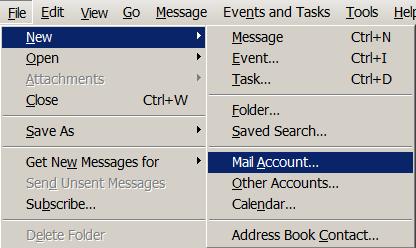
Step 2: Select File on the main menu bar, select New and then select Add Account
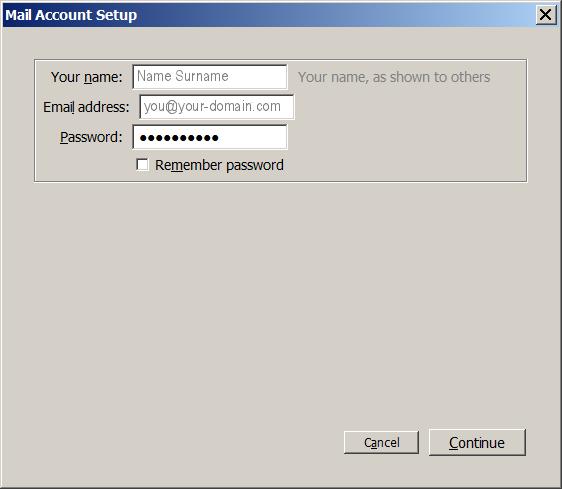
Step 3: Fill in your name, email address and the password you chose while creating the account in cPanel.
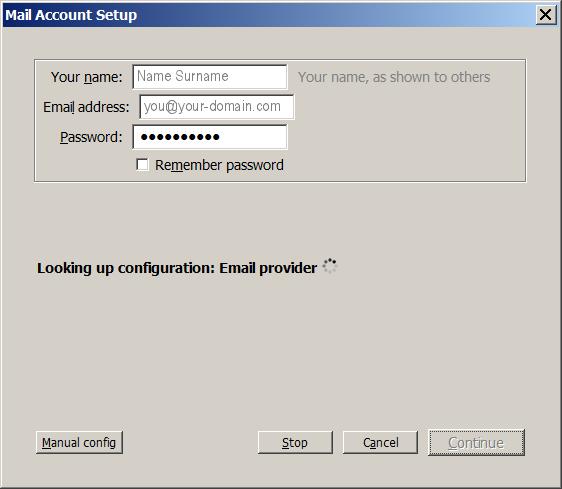
Step 4: Select Manual Config (bottom left corner).
Step 5: Ensure that the account type is POP3. Use mail.your-domain.co.za for both the incoming and outgoing mail server. Use port 587 for your SMTP server. Finally, your username is always your full email address.
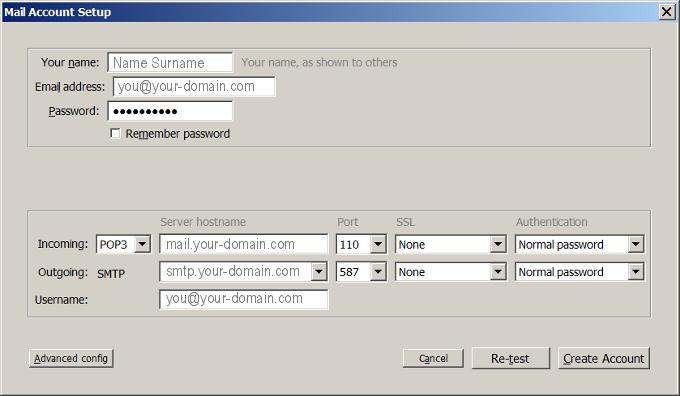
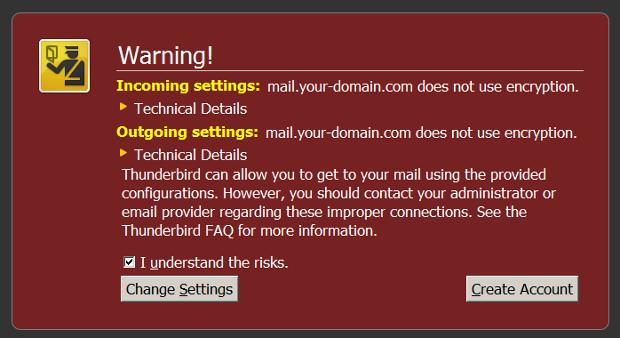
Step 6: Ensure that the box is ticked and click Create account.
You should now be able to send and receive email through Thunderbird.
Side Note: Your user name is your full email address and the password will be the one you used when you created the email address is cPanel.